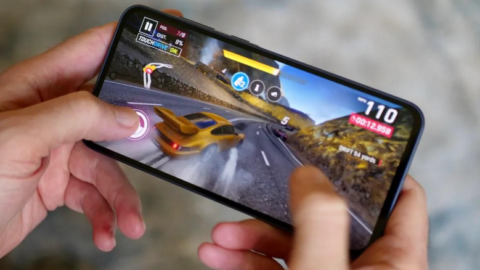
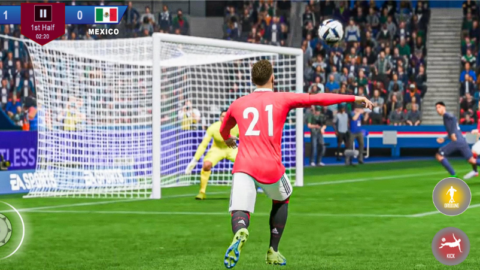
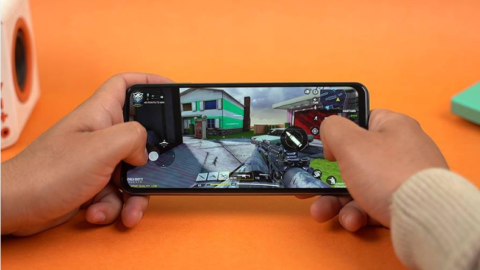
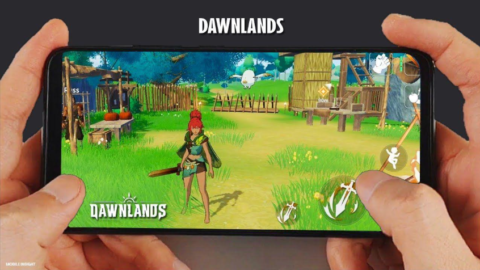
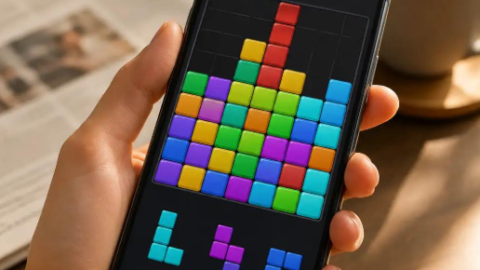
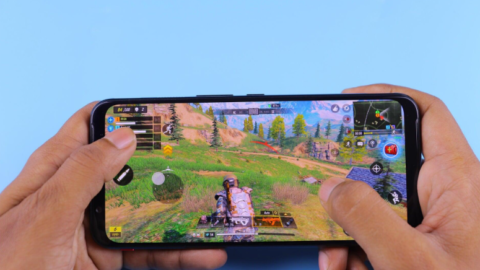
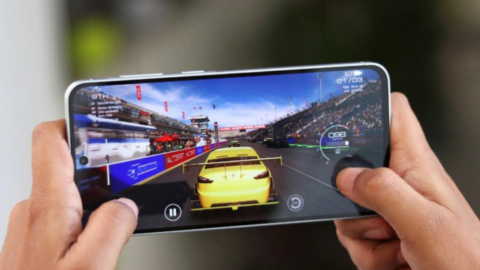
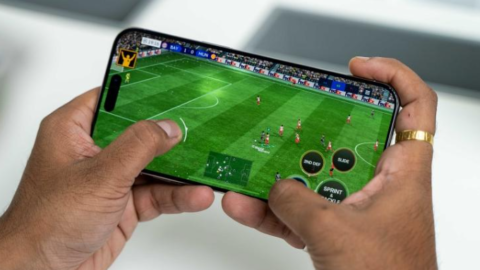
Mobile gaming has become one of the most popular ways to enjoy entertainment, compete with friends, and explore exciting virtual worlds. From action-packed shooting games to football simulations, racing games, and relaxing puzzles, Android phones offer a huge variety of gaming experiences. However, even an enjoyable game can become frustrating when it freezes, stutters, loads slowly, or responds poorly to your controls.
The good news is that you do not always need to buy a new smartphone to improve your gaming experience. By adjusting a few settings, managing your phone’s resources, and understanding what causes performance problems, you may be able to make your Android games run more smoothly.
In this guide, we will explain practical ways to improve gaming performance, reduce unnecessary lag, prevent overheating, and get more consistent gameplay from your device.
1. Close Unnecessary Apps Before Playing
One of the easiest ways to improve your Android gaming experience is to close applications you do not need while playing.
Some applications use memory, processor resources, or network data even when you are not actively using them. Messaging apps, browsers with many open tabs, video-streaming applications, and large downloads can compete with a game for your phone’s available resources.
Before launching a demanding game, save your work in other applications and close any unnecessary ones. You can also pause downloads or uploads that are not urgent.
However, closing every application constantly is not always necessary. Android manages memory automatically, and repeatedly forcing applications to close may cause them to reload later. Focus on applications that are actively consuming resources rather than worrying about every app in your recent-apps list.
Tip: If a game becomes slow after you have used several demanding apps, close the unnecessary apps, reopen the game, and check whether performance improves.
2. Lower the Game’s Graphics Settings
High-quality graphics can make a game look impressive, but they also require more processing power. If your smartphone struggles to maintain smooth gameplay, reducing graphics quality can make a noticeable difference.
Many Android games offer settings such as low, medium, high, and ultra graphics. They may also include options for shadows, reflections, textures, visual effects, and rendering quality.
Try the following adjustments:
- Change graphics quality from high to medium or low.
- Reduce shadow quality and unnecessary visual effects.
- Turn off demanding effects if the game provides that option.
- Select a performance preset when available.
- Reduce the rendering resolution if the game supports it.
You do not necessarily need to use the lowest settings for every game. Start by lowering one or two demanding options and test the results. The goal is to find a balance between attractive visuals and consistent performance.
For competitive shooting games, football games, and racing games, stable gameplay may be more useful than maximum graphical detail. A game that responds consistently can be easier to control than one that looks beautiful but repeatedly stutters.
3. Keep Your Android System and Games Updated
Software updates can improve compatibility, fix bugs, and sometimes resolve performance issues. An outdated game or operating system may contain problems that have already been addressed in a newer release.
To check for Android updates, open your phone’s Settings app and look for System update, Software update, or a similarly named option. The exact wording depends on your phone’s manufacturer and Android version.
To update your games, open the Google Play Store, search for the game, and check whether an update is available.
Before installing a major update, make sure your battery is sufficiently charged and your internet connection is reliable. If you are concerned about losing game progress, confirm that your progress is linked to the game’s supported account or cloud-saving system.
Updates are not guaranteed to make every game faster. Occasionally, a new version may introduce bugs or increase hardware requirements. Nevertheless, keeping software reasonably current is a useful troubleshooting step.
4. Free Up Storage Space
A phone with very little free storage can become harder to manage, especially when applications need space for temporary files, updates, and other operations.
Although storage space is different from RAM, having some free space helps your device handle normal tasks and install updates without unnecessary difficulties.
Open Settings and look for Storage to see how much space is available. If your phone is nearly full, consider removing files you no longer need.
Useful ways to free up space include:
- Deleting duplicate photos and unwanted videos.
- Removing downloaded files you no longer use.
- Uninstalling games and applications you no longer play.
- Moving personal media to a trusted storage location.
- Clearing an application’s cache when appropriate.
Be careful when deleting game data. The Clear storage or Clear data option can remove local settings, downloaded resources, or unsynchronized progress. Use it only when you understand the consequences and have confirmed that important progress is backed up.
You should not need to delete all your favorite games just to make your phone perform better. Start with unnecessary files and applications, then test the game again.
5. Prevent Your Phone From Overheating
Heat is an important factor in mobile gaming performance. When a smartphone becomes too hot, its system may reduce processor or graphics performance to control temperatures. This process is commonly called thermal throttling.
You may notice that a game runs smoothly at first but begins to stutter after twenty or thirty minutes. The phone may also become uncomfortable to hold, and battery consumption may increase.
To reduce unnecessary heat:
- Play in a cool, well-ventilated environment.
- Avoid leaving your phone in direct sunlight.
- Remove a thick protective case temporarily if it traps heat and it is safe to do so.
- Reduce graphics quality or frame rate when necessary.
- Avoid running several demanding applications simultaneously.
- Take breaks during long gaming sessions.
Charging your phone while playing a demanding game can add heat, particularly when the game already places a heavy load on the processor. If your device becomes unusually hot, stop playing and allow it to cool naturally.
Never put a hot phone in a refrigerator or freezer. Sudden temperature changes and condensation can damage electronic components.
6. Choose a Suitable Frame Rate
Frame rate, measured in frames per second (FPS), describes how many images a game displays each second. A higher frame rate can make motion appear smoother and controls feel more responsive, provided the phone can maintain it consistently.
Some games offer frame-rate options such as 30 FPS, 60 FPS, or higher settings on supported devices. Availability depends on the game, the phone’s hardware, and the software version.
If your phone struggles at a high frame rate, try a lower setting. For example, a consistent 30 FPS experience may feel better than a game that frequently jumps between high and low frame rates.
If your device supports a higher screen refresh rate, you may also find a refresh-rate option in your display settings. However, selecting a higher refresh rate does not guarantee that every game will use it. The game itself must support the relevant frame rates.
For competitive games, experiment with the available settings and choose the combination that gives you responsive controls without frequent stuttering or excessive heat.
7. Improve Your Internet Connection for Online Games
Not all gaming lag comes from a slow phone. Online games also depend on the quality of your internet connection and the distance to the game server.
If your character suddenly moves backward, opponents appear to teleport, or your actions register late, the problem may be network latency rather than graphics performance.
Try these steps:
- Use a stable Wi-Fi connection when it performs better than your mobile data.
- If using Wi-Fi, move closer to the router.
- Pause large downloads and video streams on your network.
- Avoid playing in areas with weak mobile signal.
- Choose the correct game server or region when the game allows it.
- Test your connection at different times if performance changes throughout the day.
A high download speed does not automatically mean low latency. Online games also benefit from a stable connection with minimal packet loss and fewer sudden delays.
You can often distinguish network lag from device lag by observing what happens. If animations and menus remain smooth but other players move unpredictably, the connection may be responsible. If the entire game freezes or animations stutter, the phone’s performance may be involved.
8. Use Your Phone’s Built-In Gaming Mode
Many Android manufacturers include a gaming feature with names such as Game Mode, Game Booster, Game Space, or Gaming Hub.
Depending on the device, these features may let you block notifications, monitor performance, manage selected settings, or reduce interruptions during a gaming session.
Open your phone’s settings or app drawer and look for a gaming-related application. If your phone provides one, explore its available options.
Some devices offer performance profiles, while others focus mainly on notifications and convenience. The results vary by manufacturer, phone model, and game.
Be cautious with third-party applications that promise dramatic performance improvements. An app cannot magically give your phone a more powerful processor or more physical RAM. Avoid tools that request unnecessary permissions, display excessive advertisements, or make unrealistic claims.
Your phone’s built-in features are usually the best place to start.
9. Restart Your Phone When Problems Continue
A simple restart can help when your phone has been running for a long time and an application or background process is behaving unexpectedly.
Restarting closes active processes and reloads the operating system. This may resolve temporary glitches, unusual slowdowns, or problems that appeared after an application stopped responding correctly.
Save any important work before restarting. Once your phone starts again, open the game and test its performance before launching several other applications.
A restart is not a permanent solution for every performance issue. If a game repeatedly slows down because the phone lacks sufficient processing power, memory, or cooling capacity, you may need to adjust the game’s settings instead.
10. Check Whether Your Phone Meets the Game’s Requirements
Some modern games require more processing power, graphics capability, memory, or storage than older smartphones can provide.
Before spending time changing settings, check the game’s official store listing and any published minimum requirements. Compare them with your phone’s specifications, including its Android version, available RAM, chipset, and storage capacity.
If your phone is below the game’s requirements, the game may run poorly even after you close applications and reduce graphics quality.
You may be able to improve performance by using lower settings, but not every limitation can be fixed through software adjustments.
Avoid unofficial applications that claim to unlock unsupported graphics settings or bypass compatibility restrictions. Such tools may create instability or put your account and device at risk.
Choosing games that match your device’s capabilities is often the most reliable way to enjoy smooth gameplay.
11. Manage Notifications and Background Activity
Incoming calls, message notifications, and pop-up windows can interrupt a gaming session. Background synchronization and downloads may also consume resources or network bandwidth.
Before starting a long match, consider enabling your phone’s Do Not Disturb mode or the notification controls available in its gaming feature.
You can also pause large downloads and postpone nonessential updates until you finish playing.
Do not disable essential security protections or system services in an attempt to make your phone faster. The aim is to reduce unnecessary interruptions, not to make your device less secure or less reliable.
Remember that notification management improves the overall gaming experience, but it may not increase FPS directly on every phone.
12. Be Careful With Developer Options and Game-Boosting Apps
Some online guides recommend changing Developer Options, installing unofficial game boosters, or using modified applications to increase performance.
These recommendations deserve caution. Developer Options are intended for testing and development, and changing settings without understanding them can cause unexpected behavior.
Likewise, an application that claims to double your FPS or unlock unlimited performance may be making exaggerated promises. Modified game files can also violate a game’s terms of service or expose your device to malware.
For most users, safer options include adjusting the game’s own graphics settings, updating official software, freeing storage, preventing overheating, and using the manufacturer’s gaming tools.
If a setting is unfamiliar, research its purpose before changing it. You do not need to modify advanced system settings to carry out the basic optimization steps in this guide.
13. Use a Simple Routine Before Every Gaming Session
You can make these recommendations easier to follow by creating a short routine before you play.
First, check whether your phone has enough battery and free storage. Close unnecessary demanding applications, pause large downloads, and connect to a stable network if you are playing online.
Next, choose graphics and frame-rate settings that your phone can maintain. If you expect to play for a long time, pay attention to heat and take breaks when needed.
Finally, test the game for several minutes. If it still stutters, identify whether the problem appears to involve graphics, overheating, internet connectivity, or the game’s own requirements.
Changing one setting at a time makes it easier to identify what actually helps. You will also avoid making unnecessary changes that reduce visual quality without improving performance.
Frequently Asked Questions
1. How can I make Android games run smoothly without buying a new phone?
Start by lowering graphics settings, closing unnecessary demanding apps, freeing storage space, updating the game, and preventing overheating. These steps can help when the problem is related to software, heat, or resource usage. They cannot completely overcome hardware limitations.
2. Does clearing RAM make games faster?
It can sometimes help if other applications are consuming resources, but Android already manages memory automatically. Repeatedly using RAM-cleaning applications is not necessary and may cause applications to reload, consuming additional resources.
3. Why does my game lag after playing for a long time?
Heat is one possible cause. Your phone may reduce performance to control its temperature. Background activity, network problems, and demanding game scenes can also contribute. Allow the device to cool and test lower graphics settings.
4. Does a higher FPS setting always improve gaming?
Not always. Higher FPS can make gameplay smoother when your phone can sustain it, but it may also increase power consumption and heat. A lower, stable frame rate can be a better choice for some devices.
5. Can a game booster fix every lag problem?
No. Built-in gaming tools may help manage notifications or provide performance options, but they cannot eliminate every network problem or hardware limitation. Be cautious with third-party tools that promise unrealistic improvements.
6. Is Wi-Fi always better than mobile data for online games?
No. The better option is the connection that provides more stable latency and less packet loss in your location. A strong mobile-data connection may outperform congested Wi-Fi, while good Wi-Fi may be more stable than weak mobile reception.
7. Should I play games while my phone is charging?
It depends on the device, the game, and the temperature. Demanding gameplay while charging can increase heat. If the phone becomes unusually hot, stop playing, disconnect the charger if safe, and let the device cool naturally.
8. How much free storage should I keep on my Android phone?
There is no single amount that guarantees better gaming performance on every device. Avoid filling storage completely, leave enough room for system operations and game updates, and follow any storage guidance provided by your phone manufacturer.
Conclusion
Making your Android phone run games more smoothly does not always require expensive hardware or complicated software changes. Simple actions such as reducing graphics quality, keeping software updated, freeing storage, improving your internet connection, and preventing overheating can make a meaningful difference.
The best settings depend on your phone and the game you play. A competitive shooter may benefit from a stable frame rate and responsive controls, while a visually detailed adventure game may require a different balance between graphics and performance.
Start with the easiest changes, test their effects, and keep the settings that work best for your device. Avoid suspicious boosters and unrealistic performance claims, and remember that some demanding games will always work better on more capable hardware.
With the right adjustments and a little patience, you can enjoy a more consistent mobile gaming experience without replacing your phone immediately.