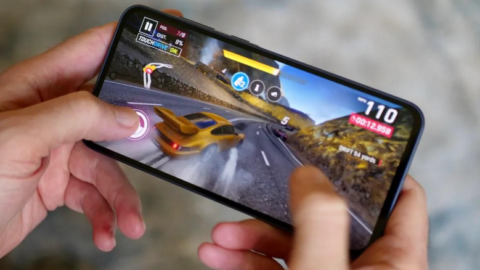
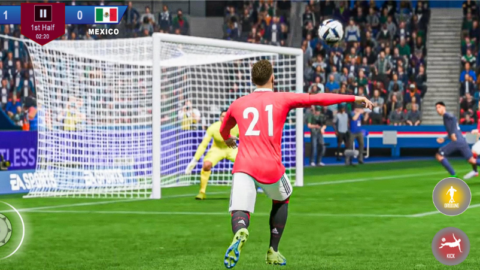
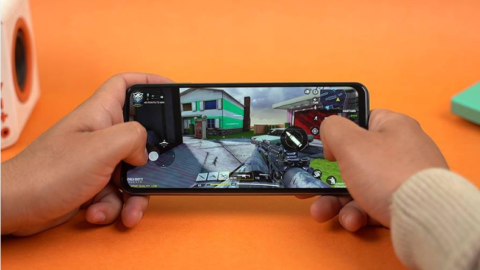
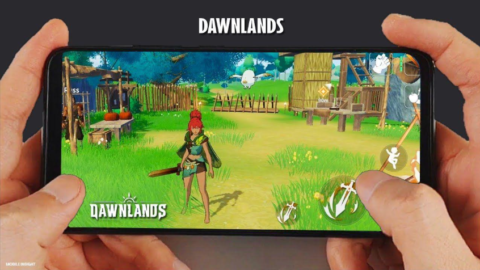
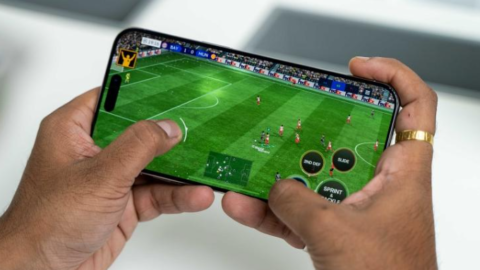
Have you ever been close to winning a mobile game when your screen suddenly freezes, your character stops moving, or your opponent appears to teleport across the screen? Gaming lag can turn an exciting match into a frustrating experience, especially when you are playing competitive games that require quick reactions.
The good news is that you may not need to buy a new phone to improve your gaming experience. Several practical adjustments can help your Android device run games more smoothly, depending on what is causing the problem.
In this guide, Playvezio explains how to reduce lag in mobile games on Android, improve gaming performance, identify common problems, and enjoy a more consistent experience without relying on risky applications or expensive equipment.
What Causes Lag in Android Mobile Games?
Before fixing lag, it helps to understand why it happens. Gaming performance depends on several factors, including your phone’s hardware, available memory, temperature, software, and internet connection.
One common cause is insufficient processing power. Demanding games require your phone to process graphics, animations, and other activities continuously. If your device struggles to handle that workload, the game may stutter or display fewer frames per second.
Another cause is network latency. Online games exchange information with remote servers, and an unstable connection can delay your actions or make other players appear to move unpredictably.
Overheating can also affect performance. When a phone becomes too hot, it may reduce its processing speed to control its temperature.
Finally, outdated software, limited storage, background downloads, and game-specific bugs can contribute to freezing and other performance issues.
Understanding the source of the problem helps you choose the right solution instead of changing settings unnecessarily.
1. How Can Lower Graphics Settings Improve Gaming Performance?
One of the easiest ways to improve mobile gaming performance is to reduce demanding graphics settings.
High-quality graphics can make a game look beautiful, but they also require more work from your phone’s processor and graphics hardware. If your device cannot maintain smooth performance at the highest settings, lowering them may help.
Open your game’s settings and look for graphics quality, shadows, visual effects, and resolution options.
Try selecting Low or Smooth graphics if the game provides that option. You can also reduce unnecessary effects or select a lower rendering resolution where supported.
After making the changes, play for several minutes and observe whether the game feels smoother.
You may notice that the graphics look less detailed, but a stable frame rate can be more valuable than impressive visuals during competitive matches.
Remember that each game has different settings, so experiment with the available options instead of assuming every game uses the same menu.
2. How Can You Improve FPS on an Android Phone?
FPS means frames per second. It describes how many frames your device displays every second while running a game.
A higher frame rate can make movement appear smoother, but only when your device can maintain it consistently.
If your game frequently drops frames, check its frame-rate settings. Some games allow players to choose between lower and higher frame-rate options.
Start with a setting your phone can handle reliably. If the gameplay remains smooth and your phone does not become excessively hot, you can test a higher supported option.
Avoid forcing unsupported frame rates through unofficial applications or modified game files. These methods may introduce instability, security risks, or violations of the game’s rules.
Your phone’s display refresh rate also matters, but a high-refresh-rate screen cannot guarantee high FPS if the processor or game itself is the limiting factor.
The best approach is to find a balance between smooth movement, device temperature, and consistent performance.
3. Can Closing Background Apps Reduce Game Lag?
Yes, closing unnecessary background apps may help when other applications are competing for memory or processing resources.
Before opening your game, close applications you do not need, particularly other demanding games, video editors, and applications performing heavy background tasks.
You should also check whether large downloads or updates are running while you play.
However, Android already manages many background processes automatically. Closing every application repeatedly is not always necessary, and some apps may restart automatically.
Focus on removing unnecessary activity rather than installing aggressive task-killing applications.
After closing unnecessary apps, launch your game and compare its performance. If there is no noticeable improvement, the problem may come from another source.
4. How Can You Stop Your Phone From Overheating While Gaming?
Overheating is a common reason for performance drops during long gaming sessions.
When a phone gets too hot, it may limit processor performance to protect its components. This can cause stuttering, lower frame rates, and slower responses.
To help manage heat, play in a cool, well-ventilated environment and avoid direct sunlight.
If your phone becomes unusually hot, take a break and let it cool naturally. Reducing graphics quality and avoiding unnecessary background activity may also reduce the workload.
A thick phone case can sometimes trap heat, so removing it during gaming may help if the case contributes to the problem.
Avoid placing your phone in a refrigerator or freezer to cool it quickly. Sudden temperature changes can cause condensation and potentially damage the device.
If overheating happens frequently during ordinary use, even when you are not playing demanding games, check the manufacturer’s guidance or seek qualified technical support.
5. How Can You Reduce Ping in Online Mobile Games?
If your game looks visually smooth but your actions are delayed, the issue may be your internet connection rather than your phone’s processing power.
Ping measures the round-trip time for data to travel between your device and a server. Lower ping generally means less network delay, although connection stability is important too.
Start by checking your Wi-Fi signal. If the signal is weak, move closer to your router or try another reliable connection.
If you play using mobile data, check your signal strength and compare performance in a location with better reception.
You should also pause unnecessary downloads and large file transfers during online matches. These activities can compete for bandwidth and contribute to congestion.
When possible, choose the appropriate regional server offered by the game. A geographically closer server may provide lower latency, although routing and network conditions also matter.
Buying a faster internet package will not automatically solve every ping problem. The route to the game server, network congestion, and the server’s own performance can all affect your experience.
6. Does Freeing Up Storage Make Mobile Games Run Better?
Having very little free storage can complicate app updates and other normal phone operations. Although freeing storage is not a guaranteed FPS boost, it can help when your device is running low on space or experiencing software problems.
Open your Android storage settings and check how much space remains available.
Remove applications you no longer use, delete unnecessary downloads, and move personal photos or videos to another safe storage location if needed.
You can also clear an application’s cache through its Android app settings when troubleshooting a specific problem.
Be careful when selecting Clear Data or Clear Storage because these options can remove local settings, saved files, or unsynced progress, depending on the application.
Never delete unfamiliar system files simply to create more space.
7. Should You Use a Game Booster App to Reduce Lag?
Some phones include built-in gaming tools that can manage notifications, provide performance information, or adjust supported device settings.
These features can be useful, but their benefits depend on your phone and the specific game.
Before downloading a third-party booster, check whether your device already has a gaming mode. Review its features and enable only options you understand.
Be cautious of applications that promise guaranteed high FPS, unlimited performance, or dramatic improvements on every device. No ordinary application can remove all hardware limitations.
Download software from trusted sources, review requested permissions, and avoid tools that ask for access unrelated to their purpose.
For many users, adjusting the game’s own settings, managing heat, and maintaining a stable connection are better first steps than installing additional software.
8. Can Updating Android and Your Games Fix Lag?
Software updates can resolve bugs, improve compatibility, and sometimes improve performance.
Check the official app store for updates to your game. You can also look in your phone’s settings for available Android system updates.
Before updating, make sure you have enough storage space and a reliable connection.
If the game starts lagging immediately after an update, check the developer’s official support page or announcements for reports of similar problems.
An update does not guarantee better performance on every device, particularly if the game’s requirements have changed.
Avoid downloading modified APK files or unofficial versions that promise unlocked features or superior performance. They may expose your phone to malicious software or cause account problems.
9. How Can You Tell Whether a Game Server Is Causing Lag?
Sometimes the problem is not your phone or your internet connection.
Game servers can experience maintenance, outages, unexpected traffic, or technical problems that affect many players simultaneously.
Check the game’s official status page, support account, or community announcements when performance suddenly becomes poor.
You can also compare the experience with another online game. If other games work normally but one particular title experiences problems, the issue may be specific to that game or its servers.
These comparisons are not definitive, but they can help narrow down the possible cause.
If the developer confirms an outage, waiting for the service to recover is usually more useful than repeatedly changing your device settings.
10. What Should You Do If Your Android Game Still Lags?
If you have tried the basic fixes and the game still performs poorly, troubleshoot the problem one step at a time.
First, restart your phone and test the game before opening other applications.
Next, compare performance at lower graphics settings. Check whether the problem appears immediately or only after the device heats up.
If online gameplay is the issue, test a different stable connection and check whether the game offers another suitable regional server.
Confirm that your phone meets the game’s current requirements. Some demanding games may not run smoothly on older or entry-level devices, even after reasonable optimization.
If the game freezes or crashes repeatedly, consult its official support resources. You may need to report a bug or reinstall the game after ensuring that your progress is backed up.
Avoid making many changes at once. Testing each adjustment separately makes it easier to identify what actually improves performance.
Frequently Asked Questions
Why does my phone lag only when I play games?
Games place heavier demands on processing power, graphics hardware, and memory than many everyday applications. The problem may become noticeable only when your phone is handling a demanding game.
Does clearing cache increase FPS?
Clearing cache may help resolve certain app problems, but it does not guarantee higher FPS. Use it as a troubleshooting step rather than a universal performance solution.
Does 5G always reduce gaming ping?
No. Ping depends on signal quality, network routing, congestion, and server distance, not just the advertised connection speed.
Can a low-end Android phone run demanding games smoothly?
It depends on the phone and the game. Lower settings and good temperature management can help, but some hardware limitations cannot be eliminated.
Will a VPN make mobile games faster?
Usually, a VPN adds another connection step and may increase latency. It can occasionally help with unusual routing problems, but it is not a reliable general solution.
Conclusion: How Can You Enjoy Smoother Mobile Gaming?
Reducing lag in Android games begins with understanding what causes the problem. Graphics settings, overheating, background activity, internet connectivity, and software issues can all affect gameplay.
Start with simple changes: lower demanding graphics settings, select a stable frame rate, keep your phone cool, pause unnecessary downloads, and check your connection.
If the problem continues, investigate device compatibility and possible game-server issues before investing in new hardware or downloading additional applications.
Not every fix will work for every phone, but a careful troubleshooting process can help you find the changes that make the biggest difference.
For more practical gaming guides, game recommendations, and troubleshooting advice, keep visiting Playvezio.com.
Play smarter. Learn more. Level up.