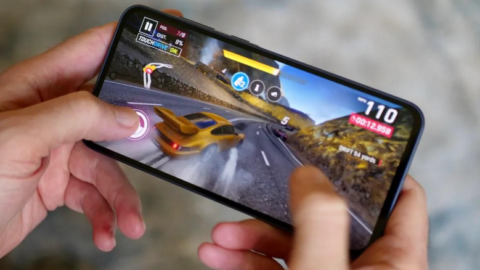
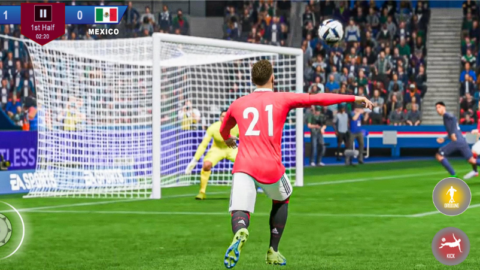
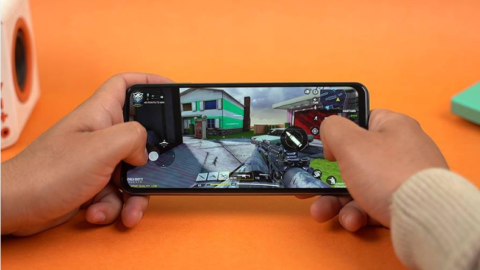
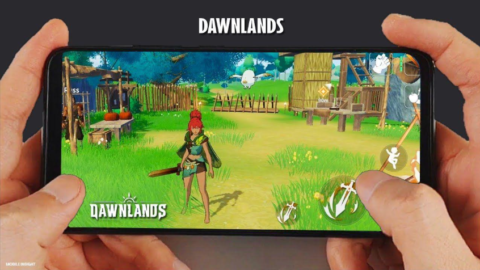
Have you ever started playing your favourite Android game with a fully charged phone, only to discover that your battery is almost empty after a short gaming session? Battery drain is a common frustration for mobile gamers, especially when playing demanding games with detailed graphics, online multiplayer modes, and high frame rates.
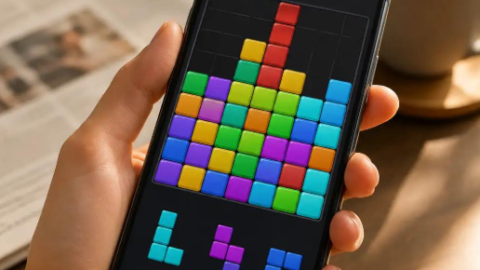
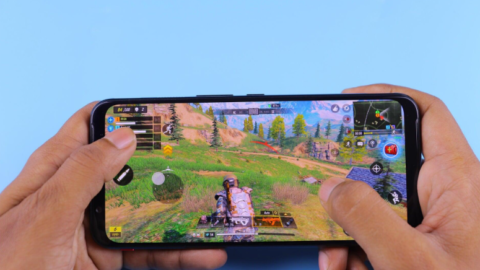
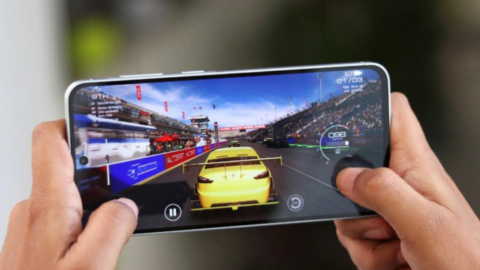
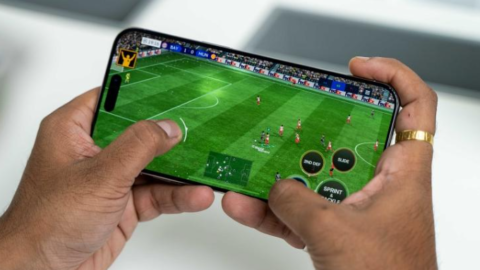
Whether you enjoy racing games, football simulations, battle royale matches, or casual puzzles, your phone needs power to run the game, display graphics, process your actions, and maintain an internet connection. Some games require more energy than others, which means your battery may drain quickly even when your phone appears to be working normally.
The good news is that you can take practical steps to reduce battery consumption without giving up mobile gaming. Adjusting graphics settings, managing screen brightness, reducing unnecessary background activity, and preventing overheating can help you get more gaming time from a charge.
In this guide, Playvezio explains how to save battery while playing games on Android, which settings are worth changing, what mistakes to avoid, and how to balance battery life with gaming performance.
1. Why Does Your Android Battery Drain While Gaming?
Before changing your phone’s settings, it helps to understand why games consume so much power.
Mobile games use several hardware components simultaneously. The processor handles game logic, the graphics processor renders images, and the display shows everything on the screen. Online games also use Wi-Fi or mobile data to communicate with game servers.
When several of these components work intensively, power consumption increases.
Here are some common reasons your battery may drain quickly while gaming.
High graphics settings
Games with detailed environments, realistic lighting, shadows, and visual effects can place a significant workload on your phone’s graphics processor.
When the graphics processor works harder, it may consume more power and generate additional heat. This is especially noticeable in demanding games on phones with limited hardware.
High screen brightness
Your display can be a significant source of power consumption. Keeping brightness at its maximum level during long gaming sessions may reduce the amount of time you get from a full charge.
High refresh rates and frame rates
Some Android phones support displays with refresh rates of 90 Hz, 120 Hz, or higher. These can make gameplay and scrolling feel smoother, but using higher refresh rates may increase power consumption.
Likewise, running a game at a higher frame rate can place more demands on the processor and graphics hardware.
Background applications
Applications running in the background may perform downloads, synchronise data, send notifications, or use location services. Their impact varies, but unnecessary background activity can contribute to battery drain.
Poor network conditions
Online gaming requires communication between your phone and the game’s servers. When your mobile connection is weak or unstable, the phone may use additional power to maintain connectivity.
Heat
Intensive gaming generates heat. When a phone becomes too hot, its system may reduce performance to protect the hardware. Heat can also contribute to battery wear over time.
Understanding these factors makes it easier to choose the most effective battery-saving settings.
2. How Can You Reduce Screen Brightness While Gaming?
One of the easiest ways to reduce power consumption is to lower your screen brightness.
A bright display may be useful outdoors, but it is often unnecessary in a dim room. Lowering brightness to a comfortable level can help reduce the energy your phone uses.
To adjust brightness on most Android phones:
- Swipe down from the top of the screen to open Quick Settings.
- Find the brightness slider.
- Reduce the brightness until the game remains easy to see.
- Adjust it again if your surroundings change.
You can also enable adaptive brightness if your phone supports it. This feature adjusts screen brightness according to your surroundings.
However, automatic brightness is not always ideal for gaming. If it changes unexpectedly while you play, manual adjustment may provide a more consistent experience.
Tip: Do not reduce brightness so much that you struggle to see enemies, obstacles, or important game details. The goal is to find a comfortable balance between visibility and battery life.
3. Should You Lower Graphics Settings to Save Battery?
Yes, lowering demanding graphics settings can help reduce power consumption in many games.
Games with advanced visual effects may allow you to adjust resolution, shadows, textures, anti-aliasing, and other graphics options. The exact settings depend on the game.
If battery life is more important to you than maximum visual quality, start by reducing the settings that place the greatest demands on your phone.
Consider these adjustments:
- Graphics quality: Try medium or low settings instead of ultra.
- Shadows: Reduce shadow quality if the game offers the option.
- Visual effects: Turn down unnecessary effects where possible.
- Resolution: Use a lower resolution if supported and if the result remains clear.
- Frame rate: Choose a moderate frame-rate option if maximum smoothness is not essential.
For example, if you play a demanding battle royale game, you might prefer medium graphics with a stable frame rate instead of maximum graphics that cause your phone to heat up.
Lower settings can also help some phones maintain more consistent performance during longer sessions.
Remember that results vary by device and game. A simple puzzle game may consume relatively little power regardless of its settings, while a visually demanding 3D game may benefit much more from these changes.
4. How Can You Adjust the Frame Rate for Better Battery Life?
Frame rate describes how many frames a game displays per second. Common options include 30 FPS, 60 FPS, and higher settings in supported games.
Higher frame rates can make movement feel smoother, particularly in competitive shooters and racing games. However, producing more frames can increase the workload on your phone.
If your priority is longer battery life, consider using a moderate frame rate rather than the highest available option.
For example:
- Choose 30 FPS for less demanding play when battery conservation is the priority.
- Use 60 FPS if smoother movement is important and your phone handles it efficiently.
- Reserve higher frame rates for situations where you genuinely benefit from them.
These are general guidelines, not rules for every device. Some phones handle certain frame rates more efficiently than others, and the game’s optimisation also matters.
You can usually find frame-rate options in the game’s graphics or display settings. Some Android phones also include refresh-rate controls in the system display settings.
Important: A lower frame rate is not always the best choice for competitive play. If you need responsive controls, experiment with different settings and choose the lowest-demand option that still feels comfortable.
5. Does Battery Saver Mode Help During Mobile Gaming?
Android’s Battery Saver feature can reduce certain background activities and system functions to extend battery life.
Depending on your device, it may limit background synchronisation, reduce performance, restrict some visual effects, or change other power-related behaviour.
To find it, open your phone’s Settings and look for Battery, Battery Saver, or Power Saving Mode. The exact name and available options depend on your Android version and manufacturer.
Battery Saver can be useful when your battery is running low and you want to continue playing for a little longer.
However, it is not always ideal for competitive games. Some phones may limit performance or background functions in ways that affect responsiveness.
Try it with a less demanding game first and see how your phone behaves.
If you notice stuttering or delayed controls, disable Battery Saver during competitive sessions and reduce the game’s graphics settings instead.
The goal is to conserve energy without making the game frustrating to play.
6. How Can You Stop Background Apps From Draining Your Battery?
Background applications may consume power even when you are not actively using them.
Before starting a long gaming session, check whether your phone is downloading large files, updating applications, or running unnecessary background tasks.
You can try the following:
- Pause downloads that are not urgent.
- Close applications you are no longer using.
- Allow large app updates to finish before starting a demanding game.
- Review battery usage in Android Settings.
- Restrict unnecessary background activity for applications that do not need to run continuously.
On many Android phones, you can open Settings, select Battery, and review which applications have used the most power. Menu names vary by manufacturer.
Avoid force-stopping essential system applications or disabling services you do not understand. Android already manages many background processes automatically, and repeatedly closing every application is not guaranteed to improve battery life.
Instead, focus on applications that are actively consuming power or performing unnecessary work while you play.
7. Can Wi-Fi Help Save Battery While Gaming?
Your internet connection can affect battery consumption, particularly during online gaming.
When your mobile signal is weak, your phone may need to work harder to maintain its connection. This can increase power consumption and cause interruptions.
If a stable Wi-Fi network is available, using it may be more energy-efficient than relying on a weak mobile signal. However, the result depends on the phone, network conditions, and Wi-Fi signal strength.
For better results:
- Play near a reliable Wi-Fi access point.
- Avoid gaming in areas with consistently poor mobile reception when possible.
- Pause large background downloads during competitive matches.
- Use a stable connection to reduce repeated reconnections.
- Download game updates over Wi-Fi when practical.
Do not disable Wi-Fi or mobile data while playing a game that requires an internet connection. Doing so may disconnect you from the server.
Airplane mode can reduce radio activity, but it also disables normal cellular connectivity and may disable Wi-Fi initially. It is only suitable for games that genuinely work offline, and it is not a universal gaming battery-saving solution.
8. How Can You Prevent Your Android Phone From Overheating?
Heat is one of the most important things to manage during extended gaming sessions.
A warm phone during demanding gameplay is not necessarily a sign of a problem. However, excessive heat can lead to performance reductions, discomfort, and additional stress on the battery.
Follow these precautions to keep your device cooler.
Take regular breaks
Long gaming sessions give your phone less opportunity to cool down. Taking short breaks between matches can help, especially when playing demanding 3D games.
Avoid direct sunlight
Playing outdoors in direct sunlight can increase your phone’s temperature. Whenever possible, choose a shaded, well-ventilated environment.
Remove a heat-trapping case if appropriate
Some thick cases can limit heat dissipation. If your phone becomes unusually warm, removing its case temporarily may help it cool down, provided you can do so safely.
Reduce demanding settings
Lowering graphics quality and frame rate can reduce the workload on your phone. This may help control heat during long sessions.
Avoid placing your phone on soft surfaces
Pillows, blankets, and other soft surfaces can restrict airflow. Use a firm, dry surface when you put your phone down to cool.
If your phone displays a temperature warning, becomes extremely hot, or repeatedly shuts down during gaming, stop playing and allow it to cool naturally. Do not place it in a refrigerator or freezer, as rapid temperature changes and condensation can damage the device.
9. Is It Safe to Play Android Games While Charging?
You can play games while charging on many Android phones, but doing so may increase heat because the device is simultaneously running a demanding game and charging its battery.
The amount of heat depends on the phone, charger, battery condition, game, and charging technology.
For better battery care, consider these practices:
- Charge your phone before a long gaming session when practical.
- Use a compatible, reputable charger and suitable cable.
- Avoid playing demanding games while the phone is excessively hot.
- Do not cover the phone with blankets or other materials while charging.
- Follow any temperature warnings from your device.
Some phones offer bypass charging or gaming power modes that supply power to the device while reducing battery charging during gameplay. Availability and behaviour vary, so check your manufacturer’s instructions.
You do not need to follow a universal percentage rule for every charge. Modern phones manage charging electronically, but avoiding excessive heat remains important for long-term battery health.
10. Which Android Settings Can Help Extend Battery Life?
Beyond individual game settings, several Android features may help reduce unnecessary energy use.
Use dark mode where appropriate. Dark themes can reduce display power consumption on phones with OLED screens, particularly when much of the interface is black. The benefit may be smaller on LCD displays and will vary during full-screen gameplay.
Turn off unnecessary vibration. Haptic feedback and vibration use power. If you do not need them, disabling them may provide a small benefit.
Reduce unnecessary notifications. Notifications can wake the screen or interrupt gameplay. Review app notification settings to prevent unnecessary interruptions.
Use automatic screen timeout outside games. A shorter timeout helps prevent your display from remaining on after you stop playing. It generally will not save much during active gameplay when the screen must remain on.
Review location access. If an application uses location services unnecessarily while you play, review its permissions. Do not disable location features that the game genuinely needs.
Keep your phone’s software updated. Updates may improve stability, compatibility, or power management, although some updates can also change performance. Install official updates and review any relevant release notes.
None of these changes guarantees a dramatic improvement on its own. Combining sensible adjustments is often more useful.
11. What Common Mistakes Should You Avoid When Saving Battery?
Some battery-saving habits sound helpful but can cause unnecessary inconvenience or even create risks.
Installing unknown battery booster apps
Be cautious of applications that promise extraordinary battery improvements or require excessive permissions. Many phones already include built-in battery management features.
An unfamiliar app cannot magically increase the physical capacity of your battery.
Keeping the screen at maximum brightness
Maximum brightness is sometimes necessary outdoors, but it is often unnecessary indoors. Adjust brightness according to your environment.
Using maximum graphics on a struggling phone
If your phone heats up and the game becomes unstable, reducing graphics settings may provide a better experience than insisting on maximum visual quality.
Repeatedly clearing every background process
Android manages background applications automatically. Force-closing everything over and over does not guarantee better battery life and may cause applications to restart later.
Ignoring a damaged battery
If your phone suddenly loses charge, shuts down unexpectedly, or becomes unusually hot even during light use, the battery or another component may need attention. Software settings cannot fix every hardware problem.
If the battery is swollen, stop using the device and seek professional assistance. Do not press, puncture, or attempt to repair a swollen battery yourself.
12. How Can You Get Longer Gaming Sessions Without Sacrificing Fun?
The best approach is to balance power consumption, performance, and comfort.
Start by identifying the games that drain your battery most quickly. A demanding racing game may require different settings from a simple puzzle game.
Next, lower screen brightness to a comfortable level and experiment with medium graphics settings. If the game remains smooth, consider keeping those settings for everyday play.
Check battery usage after a few sessions to see whether the changes make a difference. Your phone’s battery section may provide useful information about power consumption.
You should also consider your playing environment. A cool room, reliable connection, and well-maintained device can contribute to a better gaming experience.
If you are playing competitively, do not automatically disable every performance feature. Smooth controls may matter more than saving a small amount of battery during a short match.
For casual play, however, moderate graphics, lower brightness, and reduced background activity may be reasonable compromises.
Frequently Asked Questions
1. How can I save battery while playing games on Android?
Reduce screen brightness, lower demanding graphics settings, use a moderate frame rate, pause unnecessary downloads, and prevent overheating. The improvement depends on your phone and the game.
2. Does gaming drain an Android battery quickly?
It can. Demanding games use the processor, graphics hardware, display, and sometimes network radios intensively. Less demanding games may use considerably less power.
3. Should I use Battery Saver while gaming?
You can try it when battery life is your priority. However, some devices may reduce performance or affect background functions. Test it with your game before relying on it for competitive play.
4. Is 60 FPS better than 120 FPS for battery life?
A lower frame rate often reduces the workload on the device, which can help save power. However, the actual result depends on the game, phone, and graphics settings.
5. Does playing games while charging damage a phone?
Playing while charging does not automatically damage a phone, but demanding gameplay can increase heat. Avoid excessive temperatures, use a suitable charger, and follow the manufacturer’s advice.
6. Can Wi-Fi save battery compared with mobile data?
It may, particularly when the mobile signal is weak and the Wi-Fi signal is stable. Results vary by device and network conditions.
7. Why does my phone battery drain even when I am not gaming?
Background applications, poor reception, high screen brightness, location services, and battery age may contribute. Check Android’s battery-usage screen to identify possible causes.
Conclusion
Saving battery while playing games on Android does not require you to stop enjoying your favourite titles. Small adjustments to screen brightness, graphics quality, frame rate, network usage, and background activity can help you get more from each charge.
Preventing excessive heat is equally important. Take breaks during demanding sessions, avoid direct sunlight, and stop gaming if your phone displays a temperature warning.
Remember that every phone and game behaves differently. Experiment with a few settings at a time, observe the results, and choose a balance that suits your playing style.
At Playvezio, we want to help mobile gamers enjoy better experiences with practical, easy-to-follow advice. Apply these tips during your next gaming session and see which changes work best for your Android device.