Have you ever played a game and wondered why it looks blurry, runs slowly, drains your battery quickly, or feels less responsive than it should? The problem might not be your device alone. In many cases, your gaming settings can make a significant difference to your experience.
Whether you play on a smartphone, PC, laptop, PlayStation, or Xbox, choosing the right settings can help you achieve smoother gameplay, clearer visuals, better controls, and more consistent performance.
However, there is no single setting that works perfectly for every player. Some gamers prefer beautiful graphics, while others want the highest possible frame rate. Competitive players often prioritize responsiveness, whereas casual players may prefer a more visually impressive experience.
The best approach is to understand what each setting does and adjust it according to your device, the type of game you play, and your personal preferences.
In this guide, we will explore the best gaming settings for performance, graphics, FPS, controls, sound, internet connectivity, and battery life. You will also learn which settings to change first and which common mistakes to avoid.
1. What Are the Best Overall Settings for Gaming?
The best general settings depend on whether you want maximum performance, balanced visuals, or the best possible graphics.
For most players, a balanced configuration is a good starting point. It allows you to enjoy smooth gameplay without sacrificing too much visual quality.
Here are some useful starting recommendations:
- Graphics quality: Medium or High, depending on performance.
- Frame rate: The highest stable option your device supports.
- Resolution: Native resolution, or lower if performance suffers.
- Shadows: Low or Medium for better performance.
- Motion blur: Off, especially in competitive games.
- V-Sync: Test On and Off depending on screen tearing and latency.
- Anti-aliasing: Medium or a performance-friendly option.
- Texture quality: Medium or High if you have sufficient memory.
- Background apps: Close unnecessary applications.
- Power mode: Performance mode when appropriate.
- Network connection: Stable Wi-Fi or wired Ethernet where available.
These are starting points, not universal rules. Some games use different names for the same settings, and the best choice depends on your hardware.
For example, a powerful gaming PC may handle high graphics and a high frame rate simultaneously. An older phone may need lower graphics settings to maintain stable performance.
The most important principle is to choose settings that provide consistent, responsive gameplay rather than selecting every option at its maximum value.
2. Which Graphics Settings Are Best for Gaming?
Graphics settings determine how a game looks and how much work your device must perform to display it.
Higher settings can produce more detailed environments, realistic lighting, and improved textures. However, they can also reduce frame rates, increase heat, and consume more power.
Texture Quality
Texture quality controls the detail visible on surfaces such as walls, clothing, weapons, vehicles, and landscapes.
- Low uses less graphics memory but can make surfaces look less detailed.
- Medium provides a reasonable balance between visual quality and performance.
- High or Ultra produces more detailed surfaces but may require more graphics memory.
If your device has sufficient video memory or system memory, medium or high textures may be suitable. If you experience stuttering or memory-related performance problems, lowering texture quality can help.
Shadow Quality
Shadows make objects appear more realistic by showing how light interacts with the environment. Unfortunately, detailed shadows can be demanding on some devices.
For competitive games, try Low or Medium shadows. You may gain performance without losing information that matters to your gameplay.
For story-driven games, you can try High shadows if your device maintains smooth performance.
Anti-Aliasing
Anti-aliasing reduces the jagged edges that appear around objects, characters, and buildings.
Higher-quality anti-aliasing can improve image quality but may require additional processing power. Some games offer efficient methods that produce good results with a smaller performance cost.
Start with the recommended setting for your device, then lower it if your frame rate becomes unstable.
Effects and Lighting
Advanced lighting, reflections, particle effects, and volumetric effects can make games look impressive. They can also reduce performance, particularly during explosions, heavy combat, or busy scenes.
If your game frequently slows down during intense action, lower effects quality, reflections, or volumetric lighting before reducing every graphics setting.
Motion Blur
Motion blur creates a visual trail when the camera or objects move quickly.
Some players like its cinematic appearance, but others find that it makes fast gameplay less clear.
For competitive shooters, racing games, and other fast-paced titles, turning motion blur off is often a useful starting point. For cinematic games, use whichever option looks better to you.
3. What Is the Best FPS Setting for Gaming?
FPS stands for frames per second. It measures how many images your device displays each second while a game is running.
A higher frame rate can make movement look smoother and controls feel more responsive, provided your device can maintain it consistently.
- 30 FPS: Suitable for many slower-paced games and devices with limited performance. Fast movement may look less smooth.
- 60 FPS: A strong target for most games, offering a good balance of smoothness, responsiveness, and hardware demands.
- 90–120+ FPS: Useful for fast-paced competitive games when the device, game, and display support higher frame rates.
Should You Use the Highest FPS Available?
Not always. A high frame-rate option is useful only if your device can sustain it without overheating, excessive battery drain, or repeated frame drops.
For example, if a phone runs a game at 120 FPS for a short period but later drops to 45 FPS because of heat, a stable 60 FPS setting may provide a better experience.
Choose the highest frame-rate option that remains reasonably stable during actual gameplay. Consistent performance is often better than chasing the highest number.
4. Which Screen Resolution Is Best for Gaming?
Resolution determines how many pixels are used to create the image on your screen. Higher resolutions usually produce sharper visuals, but they also require more graphics processing.
- 720p: Can improve performance on weaker hardware, but the image may look less sharp.
- 1080p: A useful balance between image quality and performance for many gaming setups.
- 1440p: Provides more detail and is suitable for capable PCs and compatible monitors.
- 4K: Offers very sharp visuals but can significantly increase hardware demands.
For competitive gaming, 1080p can be a practical choice if it helps your computer maintain a higher, more consistent frame rate. For exploration and story-based games, higher resolutions can be worthwhile when your hardware supports them.
On phones, the game may not offer a resolution setting. If it does, test a lower resolution only when necessary, because reducing it too far can make enemies, text, and objects harder to see.
Some supported PC games also offer upscaling technologies that render internally at a lower resolution and reconstruct a sharper output. Try these options if you need more performance without a major reduction in image quality.
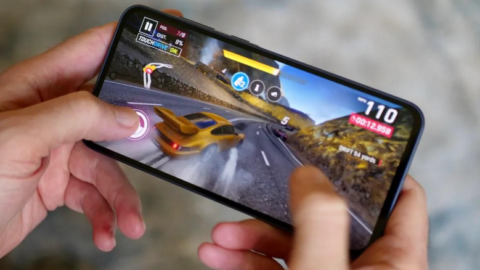
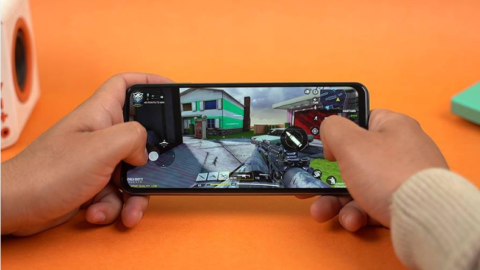
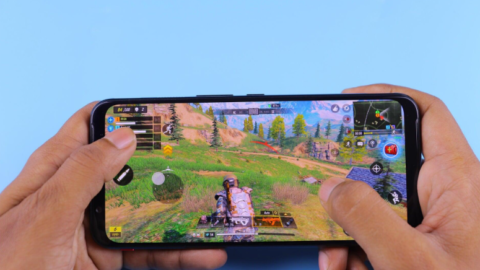
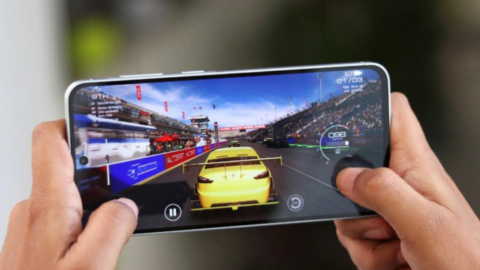
5. What Are the Best Settings for Gaming on a Phone?
Mobile gaming settings are especially important because smartphones have limited cooling space and operate on battery power.
For games such as battle royale titles, racing games, and competitive multiplayer games, consider these settings as a starting point:
- Frame rate: Highest stable option available.
- Graphics: Smooth, Low, or Medium for competitive play.
- Shadows: Low or Off if the game allows it.
- Anti-aliasing: Test On and Off for your device.
- Auto brightness: Optional; use a comfortable, consistent brightness.
- Battery saver: Usually Off during performance-focused sessions.
- Background apps: Close apps that consume significant resources.
- Game mode: Enable if it provides useful performance controls.
- Touch sensitivity: Adjust gradually to suit your hands and playstyle.
Should You Use Smooth Graphics or HD Graphics?
If your priority is competitive performance, Smooth or Low graphics may help your phone maintain a higher frame rate. If you enjoy scenery and visual detail, HD or High graphics may be more appealing, provided performance remains stable.
Should You Enable Your Phone’s Game Mode?
You can try your phone’s built-in gaming mode if it offers features such as notification blocking, performance monitoring, or resource management.
However, results vary by phone. A gaming mode does not automatically make every game faster, and aggressive performance modes may increase heat and battery consumption.
How Can You Prevent Overheating While Gaming?
Keep your phone’s vents unobstructed, avoid playing in direct sunlight, lower demanding settings if the device gets excessively hot, and take breaks when necessary.
If your phone becomes unusually hot, displays a temperature warning, or repeatedly shuts down, stop playing and let it cool safely. Do not place a hot phone in a refrigerator or freezer.
6. What Are the Best Settings for PC and Laptop Gaming?
PC gaming offers more control over graphics, display, power, and input settings.
Enable Windows Game Mode. On supported Windows systems, Game Mode helps prioritize gaming-related activity. Find it under Settings, then Gaming, then Game Mode.
Set the Correct Refresh Rate. If your monitor supports 144 Hz, 165 Hz, or another higher refresh rate, make sure Windows and the game are configured to use a supported rate rather than accidentally remaining at 60 Hz.
Choose a Sensible Graphics Preset. Start with the game’s recommended preset, then reduce demanding options such as shadows, reflections, volumetric effects, and ray tracing if performance is poor.
Use Low-Latency Features When Supported. Some games support technologies such as NVIDIA Reflex. If available, test the in-game low-latency option to see whether it improves responsiveness.
Check Power Settings. On a laptop, performance can vary between battery and plugged-in operation. Use the manufacturer’s appropriate performance mode when gaming, and make sure the cooling system has sufficient airflow.
Update Drivers Carefully. Keep your operating system and graphics drivers reasonably up to date, especially when a game has known compatibility or performance fixes. Download drivers from official manufacturer sources.
Avoid downloading unknown FPS booster applications or changing advanced system settings you do not understand. Such tweaks may offer no benefit and can introduce instability.
7. Should V-Sync Be On or Off?
V-Sync synchronizes the game’s frame output with the display’s refresh cycle to reduce screen tearing.
- V-Sync On: Can reduce tearing, but may increase input delay in some situations.
- V-Sync Off: Can improve responsiveness, but screen tearing may become visible.
- Variable refresh rate: Technologies such as G-SYNC or FreeSync can provide a useful middle ground on compatible hardware.
For competitive games, try V-Sync Off if responsiveness is your priority and tearing does not bother you. For slower-paced games, turn it on if tearing distracts you.
If your monitor supports variable refresh rate, consult the monitor and graphics-card recommendations for the best configuration. There is no single V-Sync rule that works for every system.
8. What Are the Best Mouse, Controller, and Touch Settings?
Good graphics cannot compensate for controls that feel uncomfortable or unpredictable.
Mouse Settings
For PC games, choose a mouse sensitivity that lets you aim accurately without constantly overshooting targets. Many competitive players prefer lower sensitivity with enough desk space for broad mouse movements, but personal comfort matters more than copying a professional player’s exact values.
If your game offers mouse acceleration settings, test them and keep the option that gives you the most consistent control.
Controller Settings
For controller games, begin with moderate sensitivity and adjust it gradually. Configure dead zones carefully: very high dead zones can make aiming feel less responsive, while extremely low values may cause unwanted stick drift.
If the game supports aim-assist settings, use the available options that suit your control method and the game’s rules.
Mobile Touch Settings
For touchscreen games, adjust camera sensitivity and aiming sensitivity separately if possible. Change one setting at a time and test it in a practice area before entering competitive matches.
Avoid copying another player’s sensitivity without testing it on your own device. Screen size, touch response, grip, and personal coordination all affect what feels right.
9. What Are the Best Sound Settings for Gaming?
Sound can help you recognize footsteps, gunfire, approaching vehicles, dialogue, and other important events.
For competitive games:
- Use a clear sound profile that makes important effects easy to hear.
- Keep game audio loud enough to understand without making it uncomfortably loud.
- Lower background music if it masks important gameplay sounds.
- Try headphone or spatial-audio options if the game and your equipment support them.
- Avoid assuming that every virtual surround-sound setting improves directional accuracy; test it yourself.
For story-driven games, a balanced mix of music, dialogue, and environmental effects may provide a more immersive experience.
Protect your hearing by avoiding prolonged exposure to high volume.
10. What Are the Best Internet Settings for Online Gaming?
Online gaming performance depends on more than download speed. Connection stability, latency, jitter, and packet loss can all affect gameplay.
Try these practical steps:
- Use Ethernet on a PC or console when possible.
- If you use Wi-Fi, move closer to the router and reduce obstacles.
- Use a less congested Wi-Fi band where your router and device support it.
- Pause large downloads and unnecessary streaming during competitive matches.
- Restart your router if your connection is experiencing problems.
- Choose a game server or region with a good ping when the game allows it.
A very fast internet package does not guarantee low ping. If your game feels delayed, check the in-game network indicators and determine whether the problem is local performance or the network connection.
Also remember that changing graphics settings will not necessarily fix network lag. Rendering problems and connection problems have different causes.
11. What Settings Should You Use for Battery Life and Less Heat?
If you play on a phone, laptop, or handheld gaming device, you may need to balance performance with battery life.
For longer gaming sessions, consider:
- Reducing graphics quality to Medium or Low.
- Choosing a stable 30 or 60 FPS cap instead of an unnecessarily high frame rate.
- Lowering screen brightness to a comfortable level.
- Turning off unnecessary background activity.
- Using a balanced power mode rather than the most demanding mode.
- Keeping the device on a hard, well-ventilated surface.
Higher frame rates and resolutions can increase energy use, while lowering them can help extend battery life. For a plugged-in gaming PC, reducing power consumption may be less important than maintaining stable performance, but adequate cooling is still essential.
12. How Can You Find the Best Settings for Your Own Device?
Instead of changing every option at once, follow this simple process.
- Record your starting performance. Play a representative section of the game and observe the frame rate, stutters, heat, and control responsiveness.
- Set a realistic frame-rate target. Choose a rate that your device can sustain and that your display supports.
- Adjust the most demanding graphics settings first. Try lowering shadows, reflections, effects, or resolution if performance is poor.
- Test one change at a time. This makes it easier to identify which setting improves or worsens the experience.
- Repeat the same gameplay test. Compare performance in a similar scene, not just in an empty menu.
- Keep the settings that work consistently. Smooth, reliable performance is usually better than impressive numbers that fluctuate during important moments.
If your game has an FPS counter, use it to monitor performance. When possible, pay attention to frame-time consistency as well as average FPS, because a game can have a high average and still suffer from noticeable stutters.
Frequently Asked Questions
1. Are low graphics better for gaming?
Low graphics can improve performance on weaker devices and help competitive players prioritize responsiveness. However, high graphics are perfectly reasonable if your device runs the game smoothly and you prefer better visuals.
2. Is 60 FPS good for gaming?
Yes. Sixty FPS is a good target for many games. Competitive players may benefit from higher frame rates if their hardware and display support them, but stable performance matters more than chasing the biggest number.
3. Does changing gaming settings reduce lag?
It can reduce performance-related lag, stuttering, or input delay. It will not necessarily solve network lag caused by poor connectivity, packet loss, or a distant server.
4. Should I use performance mode or quality mode?
Choose performance mode when smoothness and responsiveness are your priorities. Choose quality mode when you prefer visual detail and your device can handle it. If available, a balanced mode can be a good starting point.
5. Do gaming settings improve aim?
Appropriate sensitivity, comfortable controls, stable frame rates, and reduced input delay can help you aim more consistently. However, settings alone cannot replace practice and familiarity with the game.
6. Can the wrong settings damage my phone?
Ordinary in-game graphics settings generally do not directly damage a phone. However, demanding settings can increase heat and battery consumption. If your phone repeatedly overheats, reduce the workload and allow it to cool.
7. Should I copy professional gamers’ settings?
You can use professional settings as a starting point, but their equipment and preferences may differ from yours. Adjust sensitivity, graphics, and controls to suit your device and comfort.
Conclusion
The best gaming settings are the ones that match your device, the type of game you play, and your personal goals.
For most players, a sensible starting point is to use a stable frame rate, medium graphics, comfortable controls, clear sound, and a reliable internet connection. Competitive players may benefit from lower graphics and latency-focused settings, while players who enjoy cinematic games may prefer higher visual quality.
Remember that maximum settings do not automatically mean the best gaming experience. Test your options, monitor performance, and make gradual adjustments until the game feels smooth, responsive, and comfortable.
With the right configuration, you can get more out of your current device without immediately spending money on new hardware.