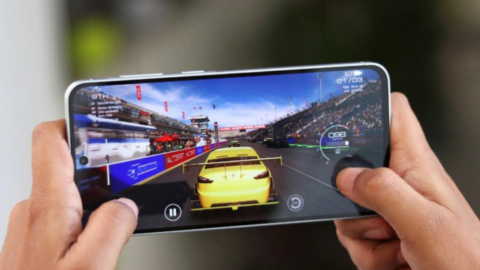
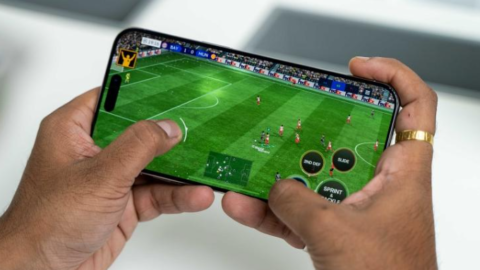
Have you ever been playing your favorite online game when your character suddenly freezes, your opponents start teleporting across the screen, or your actions take too long to register? You check your internet connection, and everything seems normal. Websites load quickly, videos stream without buffering, and your internet speed test shows excellent results. However, your game continues to lag.
If this sounds familiar, you are not alone. Many gamers experience lag even when they have a fast internet connection. It can be especially frustrating when you are playing competitive games where every second matters. A small delay can cause you to miss a shot, lose a match, or fail an important mission.
The good news is that you do not always need to purchase a faster internet package to solve the problem. Gaming performance depends on several factors, including ping, packet loss, Wi-Fi stability, game servers, computer performance, and background applications.
In this guide, we will explain why you may be lagging in games even when your internet is fine, how to identify the real cause, and what you can do to enjoy smoother gameplay.
What Does Lag Mean in Gaming?
Lag is a delay or interruption that makes a game feel slow, unresponsive, or less smooth than expected. Although people often use the word to describe every gaming performance problem, lag can have different causes.
The two main categories are network lag and performance lag.
Network lag occurs when information traveling between your gaming device and the game server experiences delays or interruptions. For example, you might press the button to shoot an opponent, but the game registers the action later than expected.
Performance lag occurs when your gaming device struggles to process and display the game smoothly. You may experience freezing, stuttering, low frame rates, or sudden drops in performance.
These problems can look similar, but their solutions are different. Increasing your internet speed will not necessarily fix a computer that cannot run a game properly. Similarly, purchasing a more powerful graphics card will not automatically solve a poor connection to a distant server.
Understanding the type of lag you are experiencing is the first step toward finding the right solution.
1. Why Does My Game Lag Even When My Internet Speed Is High?
One of the biggest misconceptions among gamers is that high internet speed automatically guarantees smooth gameplay.
Internet speed is commonly measured in megabits per second (Mbps). It tells you how much data your connection can transfer over a given period. This is important for downloading games, installing updates, streaming content, and using cloud gaming services.
However, most traditional online multiplayer games do not require extremely high download speeds. They need a stable connection that can exchange small amounts of information with the game server quickly and consistently.
For example, your internet connection might be capable of downloading files at 200 Mbps, but your game may still experience delays because of high latency or packet loss.
Think of it like driving a fast car on a road with heavy traffic. Your car has plenty of power, but traffic lights and road congestion can still delay your journey.
Your internet connection works similarly. High speed is useful, but it does not guarantee that data will reach the game server without delays.
How can you fix it?
Check more than your download speed. Look at your in-game ping, packet loss, and connection stability. If these indicators are poor, investigate your network before paying for a faster internet package.
2. Could High Ping Be the Reason My Game Is Lagging?
Ping is one of the most important measurements in online gaming. It describes the round-trip time for data to travel between your device and a server and return, usually measured in milliseconds (ms).
A lower ping generally means your game can communicate with its server more quickly.
For example, a ping of 25 ms will usually provide a more responsive experience than a ping of 180 ms, assuming the connections are otherwise comparable.
Here is a general guide to understanding ping:
- Below 30 ms: Usually excellent for responsive gaming.
- 30–60 ms: Generally good for most online games.
- 60–100 ms: Often playable, although delays may become noticeable in competitive games.
- 100–150 ms: More noticeable delays are likely.
- Above 150 ms: Fast-paced games may feel significantly less responsive.
These ranges are general guidelines, not universal rules. Different games handle latency differently, and a stable 70 ms connection may feel better than one that repeatedly jumps between 30 ms and 150 ms.
Your ping can also depend on the distance between your location and the game server. If you are playing on a server located far away, information must travel a longer physical distance.
How can you fix high ping?
Choose the closest suitable server region available in the game settings. Use an Ethernet cable if possible, reduce unnecessary network activity, and check whether your internet provider is routing your traffic through an inefficient network path.
3. Why Does Packet Loss Make My Game Freeze or Stutter?
Packet loss occurs when some data packets fail to reach their destination.
Online games continuously exchange information about player movements, actions, positions, and other events. When packets are lost, the game may struggle to keep the information displayed on your screen synchronized with the server.
You may notice enemies suddenly teleporting, your character moving backward unexpectedly, or your actions failing to register.
Packet loss can happen even when your download speed is excellent. Common causes include unstable Wi-Fi, damaged cables, faulty network equipment, network congestion, and problems with your internet provider.
How can you fix packet loss?
- Restart your router if the connection is behaving unusually.
- Try connecting your device directly to the router using Ethernet.
- Check your cables and network equipment for damage.
- Run a reliable packet-loss test.
- Contact your internet provider if packet loss continues across different games and services.
If packet loss appears only in one particular game, the problem may be related to that game’s servers or network route rather than your entire internet connection.
4. Can Wi-Fi Cause Gaming Lag Even When My Internet Is Fast?
Yes. Wi-Fi can deliver impressive speeds while still suffering from interference, weak signals, and inconsistent latency.
Your wireless connection may be affected by walls, furniture, the distance between your device and router, neighboring wireless networks, and certain electronic devices.
For example, your smartphone might achieve excellent internet speeds when placed beside the router, while your gaming console experiences interruptions from another room.
Wireless congestion can also become a problem when several devices use the same Wi-Fi channel.
What should you do?
- Use an Ethernet cable whenever practical.
- Move your gaming device closer to the router.
- Place the router in an open location with good ventilation.
- Try the 5 GHz Wi-Fi band when your device is close enough for a reliable signal.
- Consider 2.4 GHz when greater range matters more than maximum wireless speed.
- Reduce unnecessary interference from nearby wireless equipment.
A wired connection is particularly useful when diagnosing lag because it helps determine whether the wireless connection is contributing to the problem.
5. Why Does My Game Stutter When My FPS Drops?
FPS stands for frames per second. It measures how many individual images your device displays each second.
A game running at 60 FPS displays approximately 60 frames per second. When the frame rate drops suddenly, gameplay can become choppy, even if your internet connection remains stable.
This type of problem is common when playing demanding games on older computers, entry-level gaming laptops, and mobile devices with limited processing power.
Low FPS can result from a weak graphics processor, insufficient RAM, high graphics settings, background applications, or overheating.
How can you improve FPS?
Start by lowering demanding graphics settings such as shadows, reflections, and visual effects. Close unnecessary applications and check whether your device meets the game’s minimum and recommended system requirements.
On a computer, monitor CPU, GPU, and memory usage while playing. If one component consistently reaches its limits, you may have identified the performance bottleneck.
You can also update graphics drivers through the device manufacturer’s official software.
Remember that low FPS and network lag are different problems. If your frame rate drops while your ping remains stable, investigate device performance before blaming your internet provider.
6. Could Background Applications Be Causing My Gaming Lag?
Background applications can consume internet bandwidth and system resources without being immediately obvious.
For example, your computer may be downloading operating system updates while you play. A cloud storage application may be uploading files, or another game launcher may be downloading a large update.
These activities can compete with your game for network capacity.
Other applications, including browsers, screen recorders, and video editing tools, can consume CPU, GPU, and RAM resources.
How can you fix this problem?
Before starting a gaming session, pause unnecessary downloads and close applications you do not need.
On Windows, Task Manager can help you identify applications using substantial CPU, memory, disk, or network resources. On macOS, Activity Monitor provides similar information.
On mobile devices, check active downloads and background updates. If your phone becomes slow during gaming, also check whether power-saving settings are limiting performance.
You do not need to disable every background service. Focus on applications that are actually using significant resources.
7. Are Game Servers Responsible for My Lag?
Sometimes, your internet connection is perfectly fine, but the game’s servers are experiencing problems.
Online games depend on servers to coordinate multiplayer matches and synchronize player actions. If a server is overloaded, undergoing maintenance, or experiencing a technical fault, players may notice delays and connection interruptions.
One important clue is that other games work normally while a particular title continues to lag.
How can you check?
Visit the game’s official server-status page or check its official social media announcements. You can also try another available server region or test another online game.
If the developer confirms a server-side problem, waiting for the issue to be resolved may be the only practical solution.
Changing your router settings or purchasing a faster internet package will not necessarily fix a problem affecting the game’s servers.
8. Why Does My Game Lag When Other People Are Using the Internet?
Your internet connection may be shared by multiple phones, computers, televisions, and other connected devices.
When someone streams high-resolution video, downloads a large file, or uploads substantial amounts of data, your gaming traffic may compete for available network resources.
This can cause latency spikes, particularly when the connection or router struggles to manage competing traffic.
The problem is not always a lack of advertised bandwidth. Sometimes, excessive queues of data create a condition known as bufferbloat, which increases latency when the network is busy.
How can you reduce network congestion?
Pause large downloads during important matches. If your router supports Quality of Service (QoS) or Smart Queue Management (SQM), appropriate configuration may help manage competing traffic.
You can also ask household members to schedule large downloads for times when the network is less busy.
If your game becomes laggy whenever someone starts uploading files or streaming videos, network congestion is worth investigating.
9. Why Does My Game Lag Only at Night?
If your game runs smoothly during the day but becomes laggy in the evening, congestion may be responsible.
Internet usage often increases during busy periods, when many people in the same household or neighborhood are online.
Your internet provider’s network may experience congestion, or your home connection may have more competing devices during those hours.
However, evening lag can also be caused by game server problems, scheduled updates, or wireless interference.
How can you investigate?
Test your connection at different times of the day. Record your ping, packet loss, and gaming performance.
If several games and other internet services become slower during the same period, contact your internet provider and share your results.
If only one game is affected, check its server status and regional matchmaking options first.
10. Can Outdated Drivers or Game Updates Cause Lag?
Yes. Software problems can affect gaming performance even when your hardware and internet connection are adequate.
Outdated graphics drivers may cause performance issues, crashes, or visual glitches. Game updates can also introduce bugs or change the game’s performance requirements.
Network adapter drivers and router firmware may also affect connectivity in certain circumstances.
What should you do?
Keep your game, operating system, and relevant drivers reasonably up to date. Download updates from official developers and hardware manufacturers.
If lag starts immediately after a game update, check the developer’s known-issues page before making major changes to your device.
Avoid downloading unofficial driver packages or suspicious performance tools from unfamiliar websites.
11. Can Overheating Make My Game Lag?
Overheating can cause your computer, console, or mobile device to reduce its performance to control its temperature. This is known as thermal throttling.
When a processor or graphics chip becomes too hot, the device may reduce its operating speed. This can lead to lower FPS, stuttering, and inconsistent gameplay.
You might notice that your game works smoothly at first but becomes increasingly choppy after playing for a while.
How can you prevent overheating?
Keep air vents clear, ensure adequate airflow, and place laptops on suitable hard surfaces rather than soft bedding. Clean accessible dust according to the manufacturer’s instructions.
If your device continues overheating despite proper ventilation, consider having it inspected by a qualified technician.
12. Does My Gaming Device Need More RAM or Storage?
Insufficient RAM or storage-related delays can contribute to stuttering in demanding games.
RAM holds data that applications need to access quickly. If available memory becomes insufficient, the operating system may rely more heavily on storage, which can be considerably slower.
A nearly full drive or slow storage device can also affect loading and asset streaming in certain games.
However, upgrading RAM or storage will not fix every kind of lag.
Check the game’s system requirements and monitor memory usage before purchasing new hardware. If your computer consistently runs out of RAM, a compatible upgrade may help. Installing a game on an appropriate SSD may improve loading and asset streaming.
The best solution depends on the actual limitation affecting your device.
13. Can a VPN Increase Gaming Lag?
A virtual private network, or VPN, sends your internet traffic through an additional server before it reaches its destination.
Depending on the server location and network route, this can increase ping or introduce instability.
In some cases, a VPN may improve routing around a problematic network path. In other cases, it may make the connection slower.
If you use a VPN, compare your performance with and without it, provided this is permitted by your network and service requirements.
Do not assume that a VPN automatically reduces gaming lag.
14. How Can I Identify the Exact Cause of Gaming Lag?
If you are unsure what is causing your problem, use a systematic troubleshooting process.
Step 1: Check your in-game network indicators. Look for ping, packet loss, and connection warnings.
Step 2: Monitor FPS. If FPS drops while ping remains stable, investigate your device’s performance.
Step 3: Test another game. If several games experience similar issues, your local network or internet provider may be involved. If only one game is affected, investigate its servers and software.
Step 4: Try Ethernet. If a wired connection improves performance, Wi-Fi may be contributing to the problem.
Step 5: Test at different times. Compare performance during busy and quiet periods to identify possible congestion.
Step 6: Restart your router. This may resolve temporary network problems, although recurring issues require further investigation.
Step 7: Contact your internet provider when necessary. Persistent packet loss, latency spikes, and interruptions across multiple devices may require technical support.
Change one thing at a time and test the result. This makes it easier to determine which solution actually helps.
Frequently Asked Questions
Why is my ping low but my game still lagging?
Low ping does not guarantee smooth gameplay. Your device may be experiencing low FPS, packet loss, jitter, server-side problems, or inconsistent frame times. Check network performance and device performance separately.
Does faster internet reduce gaming lag?
Not always. Faster internet can help when bandwidth is insufficient, but it will not automatically fix high latency, packet loss, overheating, or server problems.
Is 100 Mbps enough for online gaming?
For most traditional online multiplayer games, 100 Mbps is generally sufficient, provided the connection is stable and other activities do not overwhelm available capacity. Cloud gaming may have different bandwidth requirements.
Why does my game lag when nobody else is using the internet?
Possible causes include weak Wi-Fi, background downloads, high ping, packet loss, game server problems, overheating, outdated drivers, or limited device resources.
Can restarting my router fix gaming lag?
Yes, restarting your router can resolve certain temporary connection problems. However, it will not fix every issue, especially when the cause is a distant server, ISP congestion, or poor device performance.
Is Wi-Fi or Ethernet better for gaming?
Ethernet is generally preferable for competitive gaming because it avoids wireless interference and often provides more consistent latency. A well-configured Wi-Fi connection can still work very well.
Final Thoughts
Experiencing gaming lag while your internet appears fine can be frustrating, but it does not necessarily mean you need a faster internet package.
The cause could be high ping, packet loss, Wi-Fi interference, network congestion, overloaded game servers, low FPS, overheating, or background applications.
Start by checking your ping, packet loss, and FPS. Test another game, try a wired connection, and observe whether the problem occurs at particular times of the day.
Remember that a fast internet connection, a stable network, and a well-performing gaming device are three different things. Understanding how they work together is the key to smoother gameplay.
Before spending money on a new router, gaming computer, or internet package, identify the actual problem. A simple adjustment to your network or graphics settings may be enough to improve your experience.